All you need are these few lines of codes:
Also don't forget to add this permission in the manifest file:
<uses-permission android:name="android.permission.ACCESS_FINE_LOCATION"></uses-permission>
Showing posts with label Android. Show all posts
Showing posts with label Android. Show all posts
Sunday, December 13, 2009


Friday, November 27, 2009
Nonblocking mechanism for Android GUI
Do you realize that fetching data from the web, for example a GET request, may actually block the GUI and then creates an error? I experienced that and would want to share my thoughts on resolving it. I have not implemented a sound solution but these are the things I have in my mind. There are two components to implement in the code:
1. Thread
2. Handler
Let's see if this works :)
1. Thread
2. Handler
Let's see if this works :)
Saturday, November 21, 2009
Removing status and title bars in an Android app (suggested method)
I discovered that the status and title bars can be removed in an Android app by inserting one simple line in the manifest xml file. Feel free to try this out and let's discuss if this does not work for you.
<activity android:name=".YOUR_ACTIVITY_NAME"
android:label="@string/app_name"
android:screenOrientation="portrait"
android:theme="@android:style/Theme.Black.NoTitleBar.Fullscreen">
<intent-filter>
<action android:name="android.intent.action.MAIN" />
<category android:name="android.intent.category.LAUNCHER" />
</intent-filter>
</activity>

<activity android:name=".YOUR_ACTIVITY_NAME"
android:label="@string/app_name"
android:screenOrientation="portrait"
android:theme="@android:style/Theme.Black.NoTitleBar.Fullscreen">
<intent-filter>
<action android:name="android.intent.action.MAIN" />
<category android:name="android.intent.category.LAUNCHER" />
</intent-filter>
</activity>

Wednesday, November 18, 2009
Quizzie with improved user interface
This is Quizzie v1.1 with much better user interface. I hope you enjoy watching this video. Quizzie v1.0 is available here.
Saturday, November 14, 2009
Jython in Android
I think it's possible. But why are there so limited references to use Jython in Android?
Friday, November 13, 2009
Removing status and title bars in an Android app
Here are a few options to display the status and title bars in your Android app. The first image shown below is exactly the output you are getting if you do not do any configurations.
To get this output, add this line in the onCreate method:
getWindow().setFlags(WindowManager.LayoutParams.FLAG_FULLSCREEN, WindowManager.LayoutParams.FLAG_FULLSCREEN);
To get this output, add this line in the onCreate method:
requestWindowFeature(Window.FEATURE_NO_TITLE);
To get this output, add these two lines in the onCreate method:
requestWindowFeature(Window.FEATURE_NO_TITLE);
getWindow().setFlags(WindowManager.LayoutParams.FLAG_FULLSCREEN, WindowManager.LayoutParams.FLAG_FULLSCREEN);

To get this output, add this line in the onCreate method:
getWindow().setFlags(WindowManager.LayoutParams.FLAG_FULLSCREEN, WindowManager.LayoutParams.FLAG_FULLSCREEN);

To get this output, add this line in the onCreate method:
requestWindowFeature(Window.FEATURE_NO_TITLE);

To get this output, add these two lines in the onCreate method:
requestWindowFeature(Window.FEATURE_NO_TITLE);
getWindow().setFlags(WindowManager.LayoutParams.FLAG_FULLSCREEN, WindowManager.LayoutParams.FLAG_FULLSCREEN);
Saturday, November 7, 2009
Setting defined colors for your Android UI components
I don't think the Android SDK manual is helpful enough when it comes to setting the colors that you defined in the XML file (in my example, res -> values -> color.xml). There is actually a workaround instead of following rigidly the guidelines to use the setTextColor(int color) method.
I believe you must have read the guidelines how to set the color of TextView from this URL and this URL and do not really feel like constructing another XML file as mentioned in the manual.
I also believe that you must have used this approach to set the color from the Java code,
btnInstance.setTextColor(R.color.YOUR_DEFINED_COLOR);
simply because the setTextColor asks for an Integer as the parameter but you don't see the changes taking place.
SOLUTION: this is THE workaround to set the color of your UI components from the codes.
btnInstance.setTextColor(getResources().getColor(R.color.YOUR_DEFINED_COLOR));
I believe you must have read the guidelines how to set the color of TextView from this URL and this URL and do not really feel like constructing another XML file as mentioned in the manual.
I also believe that you must have used this approach to set the color from the Java code,
btnInstance.setTextColor(R.color.YOUR_DEFINED_COLOR);
simply because the setTextColor asks for an Integer as the parameter but you don't see the changes taking place.
SOLUTION: this is THE workaround to set the color of your UI components from the codes.
btnInstance.setTextColor(getResources().getColor(R.color.YOUR_DEFINED_COLOR));
Friday, November 6, 2009
Quizzie - my first Android application
Behold ... my very first fully functional Android application. The development process is very short. I always have this philosophy that if you know what you want to do and achieve, you will know what to do and how to achieve it. Therefore the design process is shortened.
This game is all about Mathematics. Seemingly simple mathematical expressions but good enough to induce carelessness to choose the wrong answer.
This game is all about Mathematics. Seemingly simple mathematical expressions but good enough to induce carelessness to choose the wrong answer.
Monday, November 2, 2009
Sound Management in Android Application
This is a suggestion from myself about adjusting the volume of the sound effects or background music in your Android Activity(ies). The sample code is as below:onKeyDown method is called when a button is pressed and onKeyUp is called when the button is released. In this example specifically, we are raising and lowering the volumes when the volume keys are pressed and retain the values when the buttons are released.
Adding Vibration to your Android Application
Below are the simple steps to enable the vibration feature for your Android application. There are two things you will need to take care of - the AndroidManifest.xml file and the Vibrate class.
[1] Add this line in manifest file:
<?xml version="1.0" encoding="utf-8"?>
<manifest xmlns:android="http://schemas.android.com/apk/res/android"
. . .
. . .
. . .
<uses-permission android:name="android.permission.VIBRATE">permission>
</manifest>
[2] Add these two lines in your class definition.
[1] Add this line in manifest file:
<?xml version="1.0" encoding="utf-8"?>
<manifest xmlns:android="http://schemas.android.com/apk/res/android"
. . .
. . .
. . .
<uses-permission android:name="android.permission.VIBRATE">permission>
</manifest>
[2] Add these two lines in your class definition.
Saturday, October 31, 2009
Deploying Android package (.apk) into Mobile Device from Eclipse IDE
Feeling very frustrated trying to understand the deployment guidelines in the Android SDK website, I am writing this article to share my knowledge and experience in deploying Android applications from Eclipse into Android-powered mobile devices in Debug Mode to the readers who are also interested in developing Android applications. I have not explore the processes of signing an Android application for Public Release Mode, yet.
A major correction:
You can actually deploy your Android application without signing it in Debug Mode. Simply follow these steps and you are ready to test your application.
Things to do with the mobile device:
1. Press Menu button
2. Tap on Settings button
3. Tap on Applications in the menu
4. Put a check for Unknown Sources (to allow installation of non-Market applications)
5. Tap on Development (to set options for application development)
6. Put a check on USB debugging (to enable the Debug Mode when USB is connected)
7. Press Back button to go back to to the Settings menu
8. Plug your USB cable into the computer
Things to do with the console:
1. Go to the bin directory that places the APK file.
2. Type adb install

Optional:
You may do zipalign in the console if you wish to do so.
I hope this article is useful and informative enough for the Android developer community. Please leave your comments in the comments section if this does not work for you.
UPDATE: you may actually deploy your Android app by right-clicking at your project name. Select "Run As" and then click at "Android Application."
As simple as that. :)
A major correction:
You can actually deploy your Android application without signing it in Debug Mode. Simply follow these steps and you are ready to test your application.
Things to do with the mobile device:
1. Press Menu button
2. Tap on Settings button
3. Tap on Applications in the menu
4. Put a check for Unknown Sources (to allow installation of non-Market applications)
5. Tap on Development (to set options for application development)
6. Put a check on USB debugging (to enable the Debug Mode when USB is connected)
7. Press Back button to go back to to the Settings menu
8. Plug your USB cable into the computer
Things to do with the console:
1. Go to the bin directory that places the APK file.
2. Type adb install

Optional:
You may do zipalign in the console if you wish to do so.
I hope this article is useful and informative enough for the Android developer community. Please leave your comments in the comments section if this does not work for you.
UPDATE: you may actually deploy your Android app by right-clicking at your project name. Select "Run As" and then click at "Android Application."
As simple as that. :)
Wednesday, October 28, 2009
Motorola Droid (Android 2.0)
The Droid looks fancy but I think any smartphones will look a lot more attractive with some shades of metallic coating or aluminum casing. This is the video from CNET showcasing Motorola Droid.
Thursday, October 8, 2009
MediaPlayer vs SoundPool
Here is my recommendation if you are not sure which class to use - MediaPlayer or SoundPool when developing an Android application.
MediaPlayer:
If you were to play a background music in your application, you should go for MediaPlayer. MediaPlayer is my preferred class because it allows you to playback a lengthy audio file.
SoundPool:
As the name explains itself, SoundPool class allows you to playback a collection of short sound effects quickly and it does not lag much. Imagine yourself writing a game with several sound effects meant for different actions. You may use a HashMap to compile the list of SFXs and then play it by accessing the index number (key in the HashMap).
Summary:
Notice the adjectives I used for different classes.
Lengthy, theme = MediaPlayer
Short, effect = SoundPool
MediaPlayer:
If you were to play a background music in your application, you should go for MediaPlayer. MediaPlayer is my preferred class because it allows you to playback a lengthy audio file.
SoundPool:
As the name explains itself, SoundPool class allows you to playback a collection of short sound effects quickly and it does not lag much. Imagine yourself writing a game with several sound effects meant for different actions. You may use a HashMap to compile the list of SFXs and then play it by accessing the index number (key in the HashMap).
Summary:
Notice the adjectives I used for different classes.
Lengthy, theme = MediaPlayer
Short, effect = SoundPool
Monday, October 5, 2009
Reading XML in Android platform
I find these XmlResourceParser and XmlPullParser classes useful to read XML files when we are dealing with Android platform. Below is the code sample I use in my Android project:Here is an example from the Android Developers website.
Wednesday, September 30, 2009
Maintain Layout Orientation in Android Applications
Here is a one-liner statement in your manifest xml (AndroidManifest.xml) to maintain your preferred portrait layout orientation. Simply add this line in the XML:
android:screenOrientation="portrait"
Otherwise, you may also use "landscape" as the value.
android:screenOrientation="landscape"
Further information is available at the Android Developers Website
android:screenOrientation="portrait"
Otherwise, you may also use "landscape" as the value.
android:screenOrientation="landscape"
Further information is available at the Android Developers Website

Tuesday, September 22, 2009

Tuesday, September 15, 2009
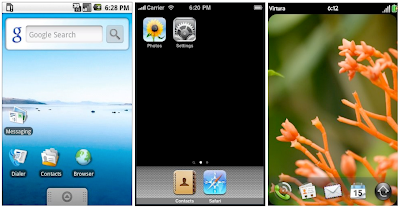
Android, iPhone, PalmOS
These are the screenshots of the desktop from three smartphones. From left to right: Android, iPhone and PalmOS. I personally prefer to write applications on Android simply because I'm familiar with Eclipse as the IDE and Java as the programming language, followed by iPhone simply because of the demand in the market and lastly, the PalmOS.

Subscribe to:
Posts (Atom)

 Posts
Posts


